On the Windows desktop, look under Start | All Programs menu for a program group called ASPEN Line Database. Inside this program group are a number of shortcuts...
START UP LINE DATABASE DESKTOP:
1. Click on the ASPEN Line Database shortcut to start the program.
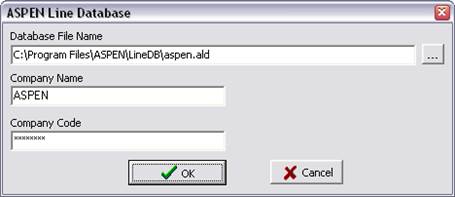
The Login dialog box will appear
2. Enter Database File Name.
Enter the full path of the line database file name, which must have an .ald extension. If needed, use the button labeled “…” to the right of the edit box to browse your hard disk.
For the first-time user: The sample and starter line database files can be found in the data directory created by the setup program. The default is <My Documents>\ASPEN\LineDBV3. You can find a description of these files in Section 2.1 INSTALLING THE DESKTOP VERSION.
3. Enter Company Name and Code.
You should not have to enter this information because the person who installed this program should have entered them. If needed, you can find the company name and code in the letter that accompanied the initial shipment of the program CD. Please write to support@aspeninc.com if you need any assistance.
The person running the Desktop Version will automatically have the administrative privileges required to customize the data forms.
START UP LINE DATABASE ENTERPRISE:
1. Click on the ASPEN Line Database shortcut to start the program.
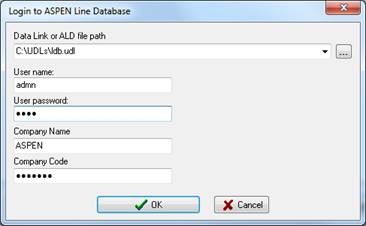
The Login dialog box will appear
2. Enter Database File Name.
Enter the full path of the line database ALD file name or data link file (*.udl), which links to a database in the database server. If needed, use the button labeled “…” to the right of the edit box to browse your hard disk.
The sample and starter database files are in the same directory as the executable program. You can find a description of these files in Section 2.2 INSTALLING THE ENTERPRISE VERSION.
If you running the Line Database for the first time, please ask your administrator for the full path name of your production line database file.
3. Enter User name and Password.
User name and password are stored within the database file.
The user name and password are both ‘admn’ for the sample and starter database files.
If you running the Line Database for the first time, please ask your Administrator for your user name and password. Also, ask whether you have been granted privileges required to customize the data forms.
4. Enter Company Name and Code.
You should not have to enter this information because the person who installed this program should have entered them. If needed, you can find the company name and code in the letter that accompanied the initial shipment of the program CD. Please write to support@aspeninc.com if you need any assistance.