 Close the form.
Close the form.
 Commit form data to the database.
 Refresh the data in the form. The data may have changed after you opened this
form because (1) you changed the data in another form, or (2) in the Enterprise
Version only: the data was changed by another user.
Refresh the data in the form. The data may have changed after you opened this
form because (1) you changed the data in another form, or (2) in the Enterprise
Version only: the data was changed by another user.
 Recalculate line constants.
 Delete current line record.
 Open Line Section Data Form for the selected section.
 Add a new line section. Use the drop-down menu on the right to control whether
the new section is added before or after the selected section.
Add a new line section. Use the drop-down menu on the right to control whether
the new section is added before or after the selected section.
 Delete selected line section.
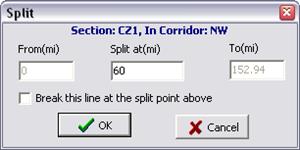
 Split selected line section. A dialog box will appear. Enter the
“Split at” distance and press OK. Check “Break this line at the split point
above” to split current line into two different lines.
Split selected line section. A dialog box will appear. Enter the
“Split at” distance and press OK. Check “Break this line at the split point
above” to split current line into two different lines.
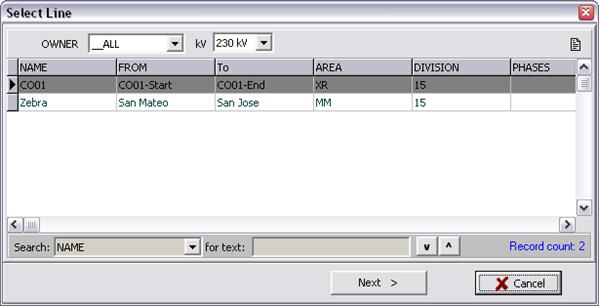
Join lines: Join current line with another line. A wizard dialog box will
appear. Select a line you want to join from the line browser to join with
current line.
Select the connection point to join the selected lines
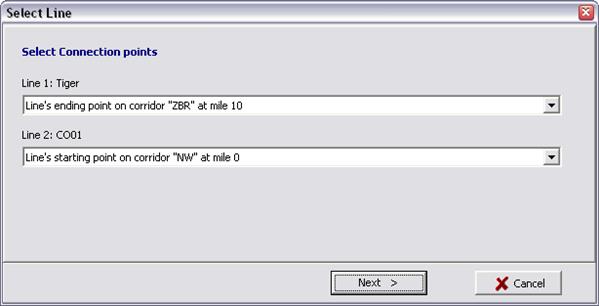
The program will join the selected lines at the points selected above.
 Misc | Copy line data to clipboard This command copies the line
impedance data to Windows’ clipboard in a format that is compatible with the
Paste Transmission Line Data command in OneLiner.
Misc | Copy line data to clipboard This command copies the line
impedance data to Windows’ clipboard in a format that is compatible with the
Paste Transmission Line Data command in OneLiner.
If the line has one or more taps, you will see the following dialog box:
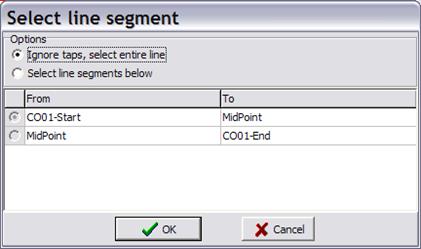
Select the entire line or one of the lines segments. Press OK.
Note: The copied line data are in per-unit. It is the user’s responsibility to paste the data on a line of the same nominal kV.
Misc | Copy mutual coupling data to clipboard This command copies
the zero-sequence mutual coupling data for selected line pair to Windows’
clipboard in a format that is compatible with the Paste Mutual Pair Data
command in OneLiner. The copied mutual-coupling data are in
per-unit. It is the user’s responsibility to paste the data only on a line pair
of the same nominal kVs.
Misc | Line constants report This command displays the line
constants report in the TTY Form. The report includes positive and zero sequence
impedance data of all the line sections and of the entire line, as well as
zero-sequence mutual coupling with other lines in the same corridor.
Misc | Distance calculator This command locates a fault on a
transmission line based on the positive-sequence apparent impedance measured at
one end of the line. The input can be either the apparent impedance in primary
ohms, or in percentage of the line’s total impedance.
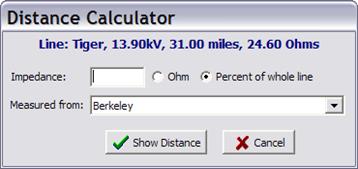
TO CALCULATE
DISTANCE TO A FAULT
1. Enter the measured positive-sequence impedance
in Ohms or in percent.
2. Select the end bus at which the apparent
impedance was measured.
3. Click on Show Distance. The distance
report will appear in the TTY Form.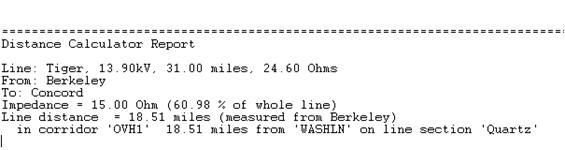
Misc | Set operating temperature This command lets you
select an operating temperature that will be used in calculating the line
constants. The operating temperature is a property of the wire type. The program
will show you only the operating temperatures that are available in all the wire
types currently in use on this line.
Misc | Change nominal kV This command lets you change line’s
nominal kV. The program recalculate the line impedance in per unit once the
nominal kV is changed.
Misc | Replace circuit wire This command lets you replace one wire
type with another on entire line.
TO REPLACE LINE’S WIRE
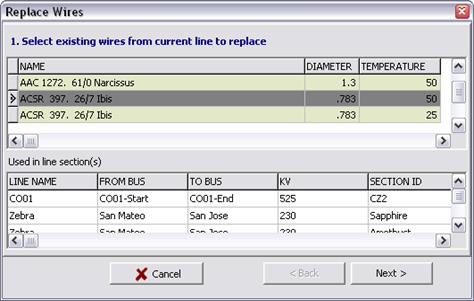
Select a row in the list of existing wires on this line. Click on “Next” button to continue
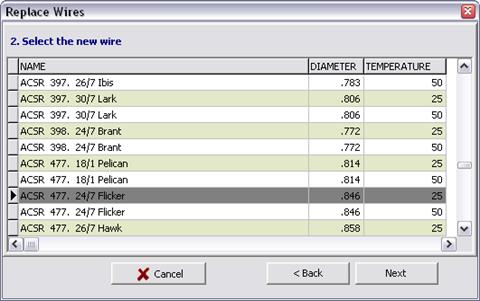
Select a new wire from the wire library.
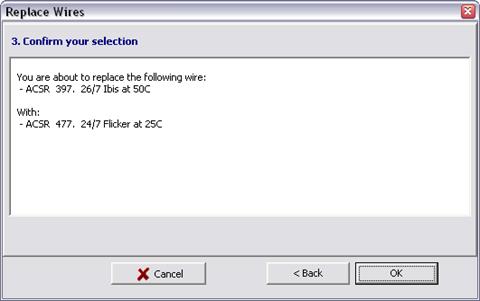
Confirm your selection and click OK to apply the changes.
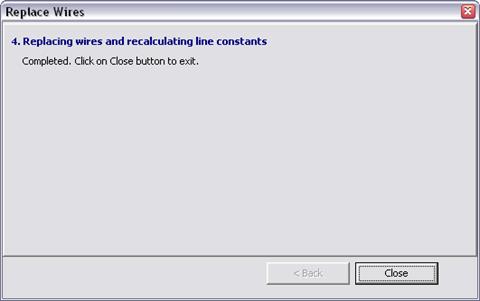
Wait for the action to finish. Click “Close” to close the wizard.
 Tap Browser The Tap Browser is designed to help you manage the tap
points. Each tap point must have a unique name and a distance from the starting
location of the line. The Line Database include the tap points in line
constants report. Also, the tap buses are taken into account in the “Copy line
data to clipboard” commands, unless you instruct the program to ignore them.
Tap Browser The Tap Browser is designed to help you manage the tap
points. Each tap point must have a unique name and a distance from the starting
location of the line. The Line Database include the tap points in line
constants report. Also, the tap buses are taken into account in the “Copy line
data to clipboard” commands, unless you instruct the program to ignore them.
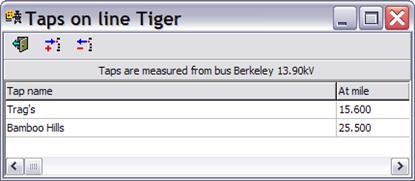
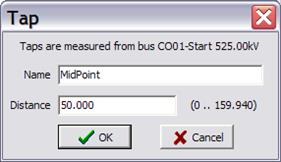
TO ADD NEW
TAP POINT
1. Press the Add button
2. Enter tap name and
position and press OK.
TO DELETE A
TAP POINT
1. Select a tap entry in the browser grid
2. Press the
Remove button
TO EDIT A TAP POINT
1. Double click on a tap entry in the browser
grid
2. Edit tap name and position and press OK
 Toggle display of the line constants panel.
 Manage file attachment in this line data record.
 Customize Info fields. Administrator can use this command to enable/disable the
fields in the info tab, customize the field label, specify field display order
on the form and define dropdown pick list for text fields. See Section 3.16 CUSTOMIZABLE DATA
FIELDS for more information.
Customize Info fields. Administrator can use this command to enable/disable the
fields in the info tab, customize the field label, specify field display order
on the form and define dropdown pick list for text fields. See Section 3.16 CUSTOMIZABLE DATA
FIELDS for more information.