 on the command bar. The
Form Label dialog box will appear.
on the command bar. The
Form Label dialog box will appear.The data forms for lines, line sections, corridors, overhead structures, wires, and cables each contains an Info tab in which customizable data fields are displayed. The data fields are organized as a table with columns Label and Value. The information you enter for these customizable fields will become part of the data-object record.
The fields’ default names are as follows. Bxx are for Boolean data (i.e., ‘Yes’ or ‘No’), Nxx fields are for numeric data, Sxx are for text string. Dxx are for date/time. The Administrator can specify which fields are visible in the Info tab. For each of those fields, the Administrator can specify the field label, the display order, and the data entry method.
TO CUSTOMIZE FORM INFO FIELDS
1.
Click on the form’s Info tap then press the Customize Field button
on the command bar. The
Form Label dialog box will appear.
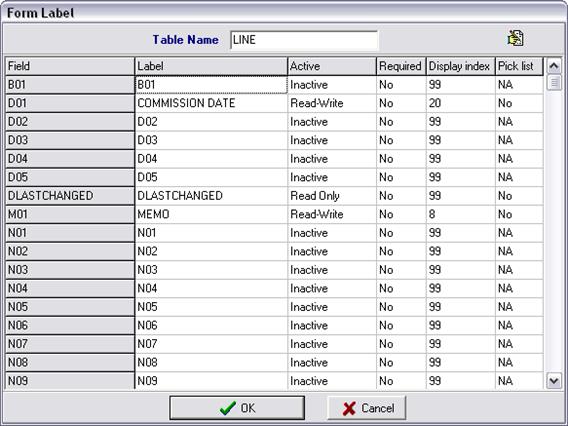
1. Edit the field label.
2. Select field status in the Active column. The status can be Read-Write, Read-Only or Inactive. Inactive fields are not displayed in the data form.
3. Specify in the Required column whether or not the field can be left empty. For a Required field, the user must enter some data before the form can be closed.
4. Specify in the Display Index column the display order. The program will display the active fields in ascending order of the display index.
5.
Press the button  to define the pick
list if applicable. The pick list editor will appear.
to define the pick
list if applicable. The pick list editor will appear.
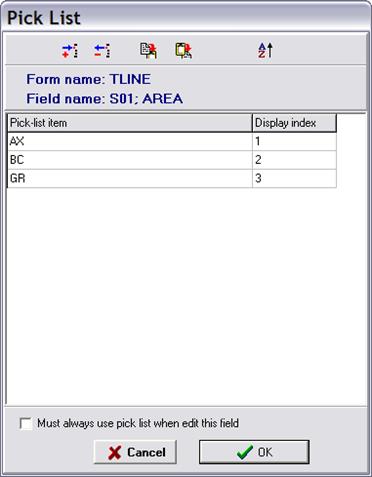
Click on button
 to add a pick-list entry.
Enter a pick-list item and display index.
Uncheck the box Must always use pick list if users can enter field values other than those in the pick list.
Press OK in the picked list dialog box when done.
6. Press OK to close the Form Label dialog box. The form will refresh to show changes you just made.