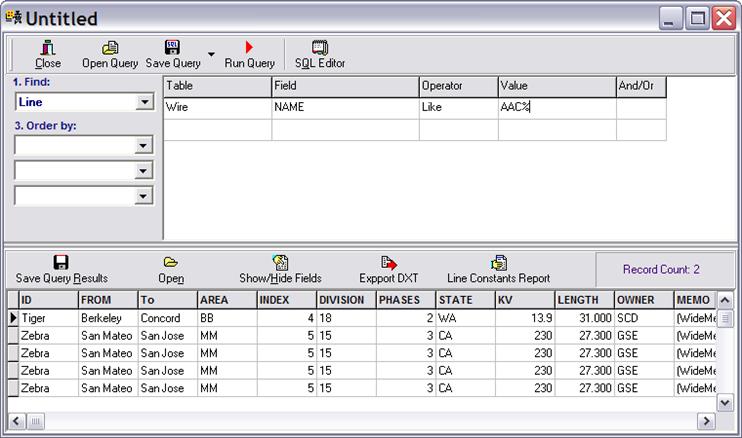
The File | Query Builder command help you locate data records for lines, line sections, corridors, overhead structure types, wires and cables that meet certain criteria. You can also enter and execute an SQL query directly in the SQL editor to perform complex searches.
TO RUN THE QUERY WIZARD
1. Select menu Query | Query Builder. The query wizard will appear.
TO PERFORM A QUERY
1. Select in dropdown list labeled Find object type you want to search.
2. Click in grid cell. Enter search criteria.
Each row in the grid describes a search condition in the format
<Table><Field> <Operator><Value>
When the condition is true, the object will be listed in the query result.
The <Table> in the search condition does not have to be the same as the object type in the Find box. For example you can find lines having wire that contains data field meeting the specified condition.
Supported operators:
= equal to
> Greater than
>= Greater than or equal to
< Less than
<= Less than or equal to
<> not equal
like match text. Wild cat character % can be used in as value to match any text
Not like Negate of Like operator
In Match entries in list. Value field must contain comma delimited list of items.
Not in Negate of In operator
Between Inside range between the maximum and minimum limits entered in value cell
Not between Negate of Between operator
Is null Field is empty
Is not null Field is not empty
You can perform complex query by entering multiple conditions that are grouped together using logical And/Or operator and brackets.
3. Right click on a grid to insert and delete rows.
4. Select in the Order by drop list fields on which to sort the search result.
5.
Press Run Query button  to
perform the search. All records with data that match search criteria will be
displayed in the Query result grid on the bottom of the form.
to
perform the search. All records with data that match search criteria will be
displayed in the Query result grid on the bottom of the form.
6. Commands that can be performed on the query result:
Press Open to open a record in the form.
Press Save query results to store result grid in CSV file
Press Show/Hide field to specify which column to display in the grid.
Press Export DXT and Line Constants Report to store line impedance in text file.
TO STORE A QUERY IN THE DATABASE FOR QUICK ACCESS
1.
Press the Save Query button  . A dialog
box will appear to let you enter the name, the category, and a description of
the query.
. A dialog
box will appear to let you enter the name, the category, and a description of
the query.
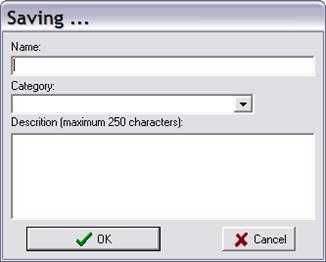
Press OK to store the query. The program will display the category and name of all the stored queries in the Query menu’s dropdown list.
TO STORE A QUERY IN A DISK FILE
1. Click on the arrow to the right of the Save Query button. Select Save As | Save to file… A Save As dialog box will appear to let you enter the name and location of the query file.
To execute a query that was saved in a disk file previously, select the Select File command under the Query menu in the main window.
Main Window
FORM MENU