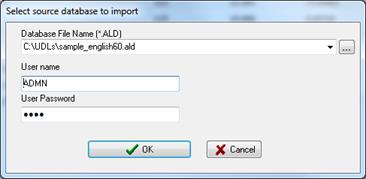
The Tools | Import From ALD Database command lets you import data from a ALD file to the current Line Database on your server.
You can choose to import the following data from the ALD file:
•Wire types from the wire library
•Cable types from the cable library
•Overhead constructions
•Overhead and underground transmission lines
This command will not overwrite any existing line data in your database.
To import data from an ALD Database file:
1. Select the Tools | Import from ALD Database command.
A “Select source database to import” dialog will appear.
Enter the database file path and provide the credentials to log in to the source database file.
The import wizard dialog will appear.
Select the objects to import:
a. To import wire data:
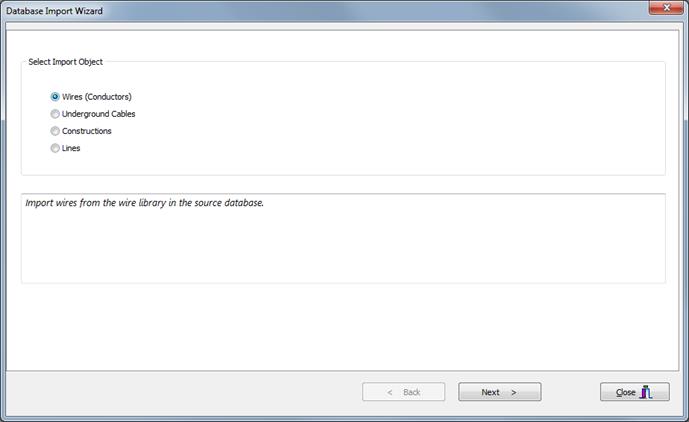
- Select Wires from the “Select Import Object” group and click on the “Next” button.
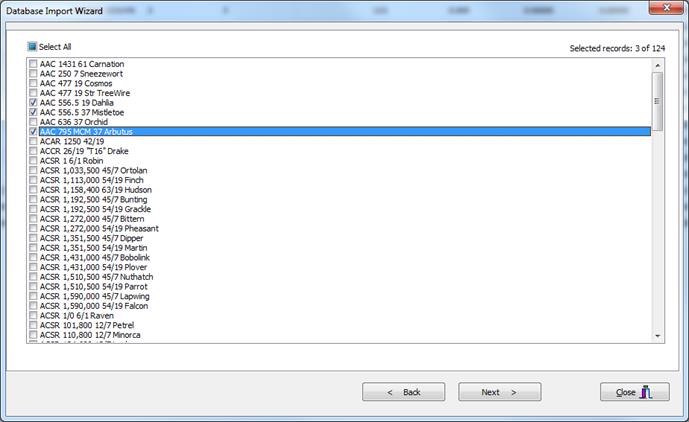
- Select the wires to import by checking the box next to each wire name. To import all the wires from the library, check the box next to “Select All”.
- Click Next to continue.
- A progress dialog box will appear and the program will start importing the selected entries to the database. Once the import process has completed, you can select on “Copy to Clipboard” to copy the import log to the Windows’s clipboard.
b. To import cables data:
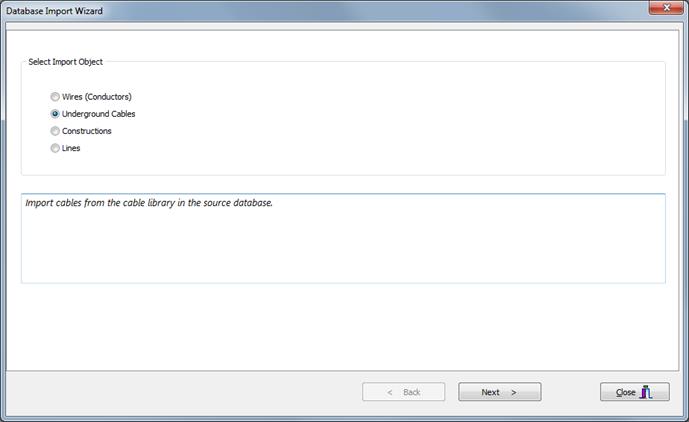
- Select Cables from the “Select Import Object” group and click on the “Next” button.
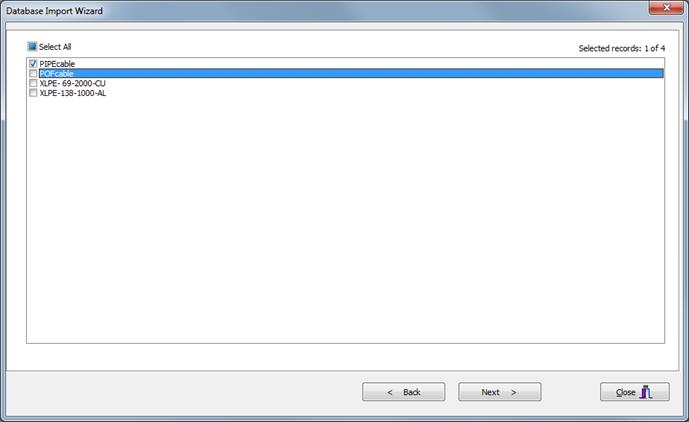
- Select the cables to import by checking the box next to each cable name. To import all the cables from the library, check the box next to “Select All”.
- Click Next to continue.
- A progress dialog box will appear and the program will start importing the selected entries to the database. Once the import process has completed, you can select on “Copy to Clipboard” to copy the import log to the Windows’s clipboard.
c. To import constructions data:
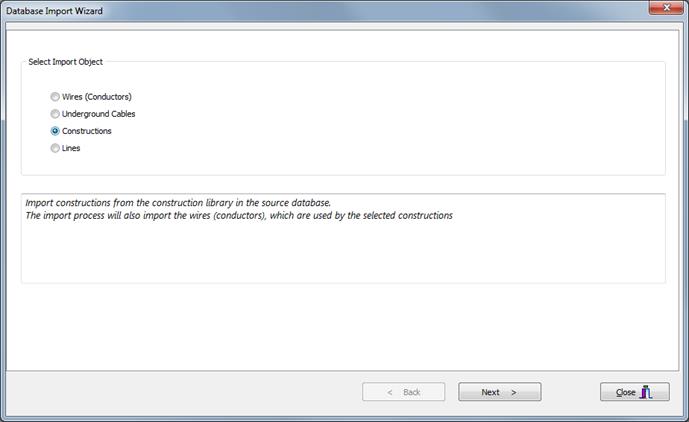
- Select Constructions from the “Select Import Object” group and click on the “Next” button.
- Select constructions to import by checking the box next to each construction name. To import all the construction from the library, check the box next to “Select All”. You can find a construction by entering its name to the Search box.
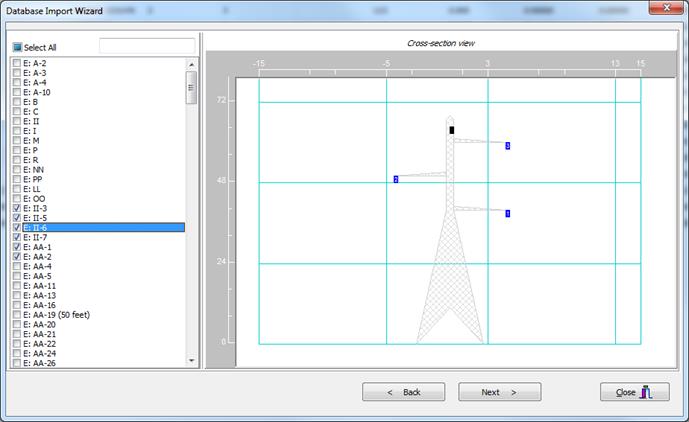
- Click Next to continue.
- A progress dialog box will appear and the program will start importing the selected entries to the database.. Once the import process has completed, you can select on “Copy to Clipboard” to copy the import log to the Windows’s clipboard.
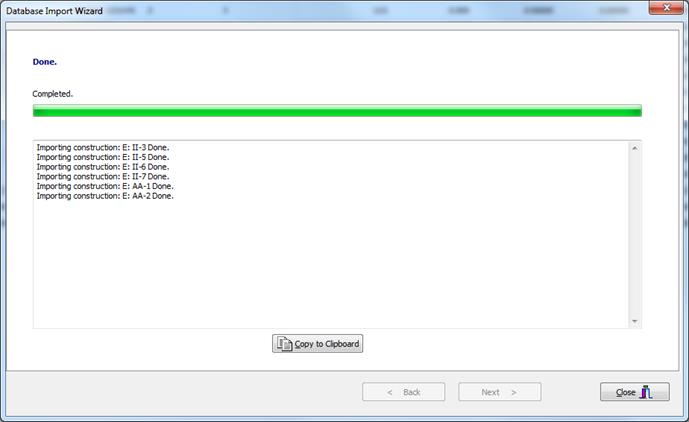
Note: The import construction data operation also automatically copies the data for all default conductors specified in the construction entries you selected.
d. To import lines:
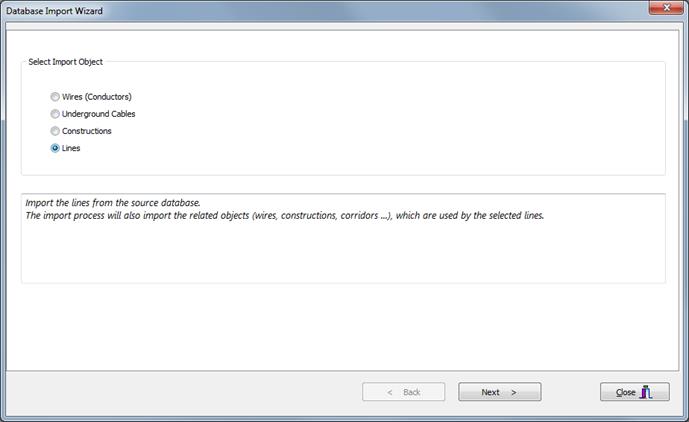
- Select Lines from the “Select Import Object” group and click on the “Next” button.
- Select lines to import by checking the box next to each line name.
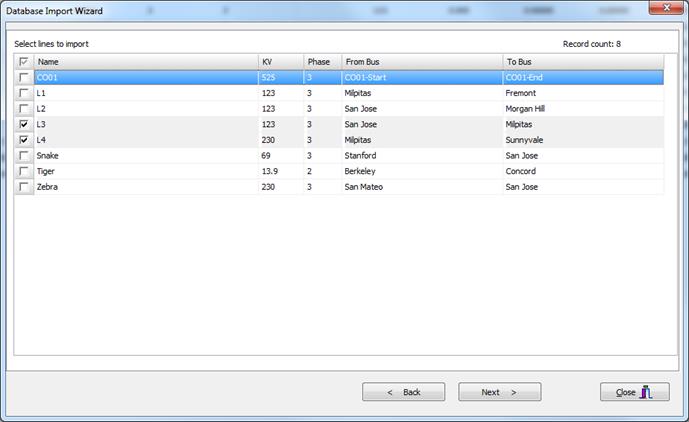
- Click Next to continue
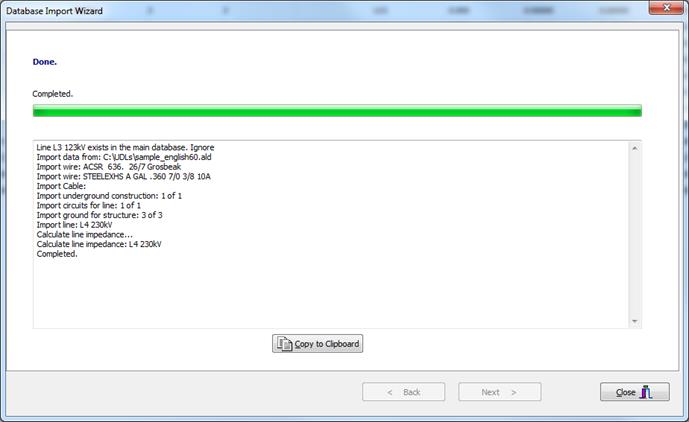
- The program will start importing the selected lines to the database and will show the progress in the Import log while importing the data. Once the import process has completed, you can select on “Copy to Clipboard” to copy the import log to the Windows’s clipboard.
Note:
- The import line operation also automatically copies data for all constructions and conductors specified in the line entries you selected.
- The import line operation also automatically skips over the line entries already exist in the database. Two lines are consider the same when they both have the same value in the Name field.
Main Window
TOOLS MENU