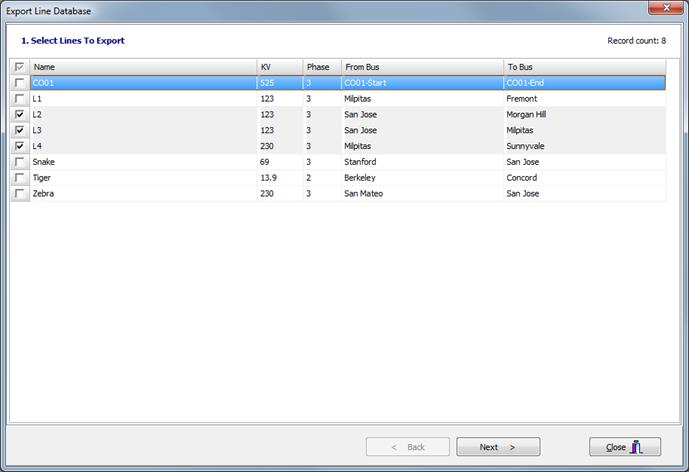
The Tools | Export to ALD Database command lets you create a new ALD database file and export data of the selected lines, including related constructions and conductors to this file.
To export to an ALD database file:
Select the Tools | Export to ALD Database command.
An “Export Line Database” dialog will appear.
Select lines to export by checking the box next to each line name. Click on the “Next” button to continue.
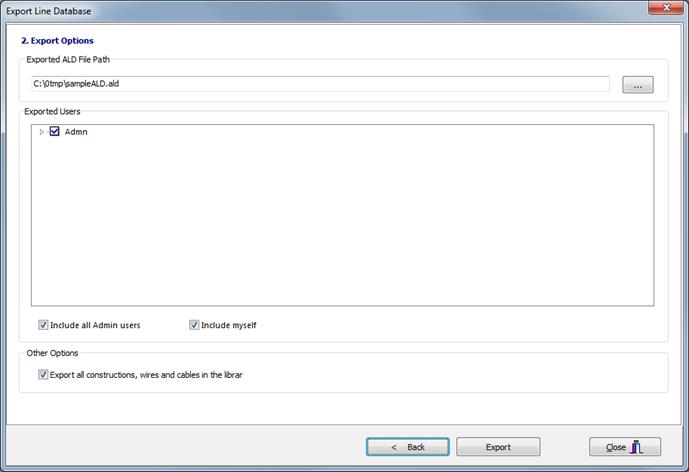
Enter the path of the new ALD database in the “Export ADL File Path” box or click on the Browse button to select a new file path.
Note: You have to ensure the current user has Read/Write access to the above ALD path to allow the program to create a new ALD database file.
Select the Line DB users to include in to the ALD database. Only the users you select can open the exported ADL database. Mark the check box “Include all admin users” to export all the admin users in the current database. Mark the check box “Include myself” to export the current user.
Set the check box “Export all constructions, wires and cables in the library” to include all the construction, wires and cables from the current library in the database to the new ALD database. When this box is unchecked, only the data related to the selected line will be included.
Click on Export to start exporting the selected lines and other data to the new ALD database.
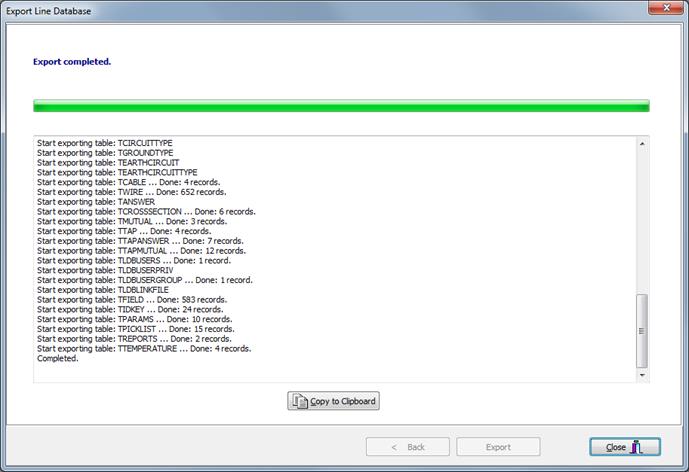
The program will display the export progress in the Export log while exporting the data. Once the import process has completed, you can select “Copy to Clipboard” to copy the export log to the Windows’s clipboard.