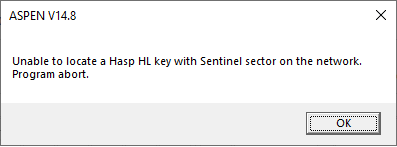
This error message indicates that: 1) OneLiner configuration for Key Type and Method of Access on this PC is set to " Local or Network access to HL-Net key's Sentinel Sector". And 2) The program had failed to connect to the ASPEN Network hardware key on the license server for license authentication.
TO TROUBLSHOOT THIS ERROR
1. Verify that " Local or Network access to HL-Net key's Sentinel Sector" is the correct configuration setting: You can use this program configuration only when you have an ASPEN Network Hasp-HL key with the Sentinel Sector (Red color. "SS" is printed on the sticker label) and you had set up a license server to let the program access OneLiner license on the key.
2. Verify that the network license server is running: The license server is the computer where you have the ASPEN Hasp HL-net key connected. You can try these tests:
a. Test run OneLiner on another PC on the network: If you are able to launch OneLiner on another PC on the network, open the OneLiner Help | About dialog box. If it shows a network Hasp key with Sentinel Sector is being used, your license server is working correctly and OneLiner had successfully checked out a OneLiner seat on your network key to launch. Skip to the next step.
b. Physical inspection of the license manager PC: Verify that ASPEN network Hasp key (red color) is connected at a USB port of the license server computer. If the key's LED light is not lit, try to connect the key to another USB port. You may also need to run the Sentinel HASP/LDK Run-time setup (HaspUserSetup.exe) to re-install the hardware key driver.
c. Check the status of the Sentinel license manager software on the license server computer: Open the Task manager to show the list of windows services and check if the service name "hasplms" is in the list with the "running" status. If "hasplms" service is missing, run the Sentinel HASP/LDK Run-time setup (HaspUserSetup.exe) to reinstall it.
d. Check the Sentinel key list in the Sentinel Admin Control Center: Start internet browser on the license server PC, enter the following in the address bar and press Enter:
http://localhost:1947
The Sentinel Admin Control Center will appear.
Click on "Sentinel keys" in the left side menu bar. The list of available Sentinel keys should include one entry of Local key with vendor code of 42254. If the entry is not found, contact ASPEN support with the serial number of the key you found in the previous step to further troubleshooting.
3. Verify that the OneLiner PC can communicate with the license server computer over the network using the web browser:
Open the License Server's Sentinel Admin Control Center from the OneLiner PC: Start internet browser on the OneLiner PC and enter following in the address bar and press Enter:
http://License_Server_IP_address:1947
where License_Server_IP_address is the network IP address or network name of the license server PC.
The Sentinel Admin Control Center should appear. If it is not the case, skip to step #5.
Click on "Sentinel keys" in the left side menu bar and verify that the list of available Sentinel keys includes one entry with vendor code of 42254.
4. Enter correct license server configuration settings:
Start internet browser on the OneLiner PC, enter the following in the address bar and press Enter:
http://localhost:1947
The Sentinel Admin Control Center should appear. Click on "Sentinel keys" in the left side menu bar. If the list of available Sentinel keys already includes one entry with the vendor code of 42254, skip to the next step.
Click on "Configuration" in the left side menu bar. Open the "Access to Remote License Managers" tab. In the "Remote License Search Parameters" edit box, enter the network IP address or network name of the license server computer. Click Submit.
Click on "Sentinel keys" in the left side menu bar and refresh the page until one entry with the vendor code of 42254 will appear.
5. Verify network firewall settings:
Check if the network communication between the OneLiner PC and the license server computer on port 1947 is being blocked by a firewall or anti-virus program. Your local IT help desk will be in the best position to assist with this kind of problem. Also if you are using Sonic firewall, additional troubleshooting details can be found in this Gemalto KB article.